Hopover by AIVory · PC migration over your network
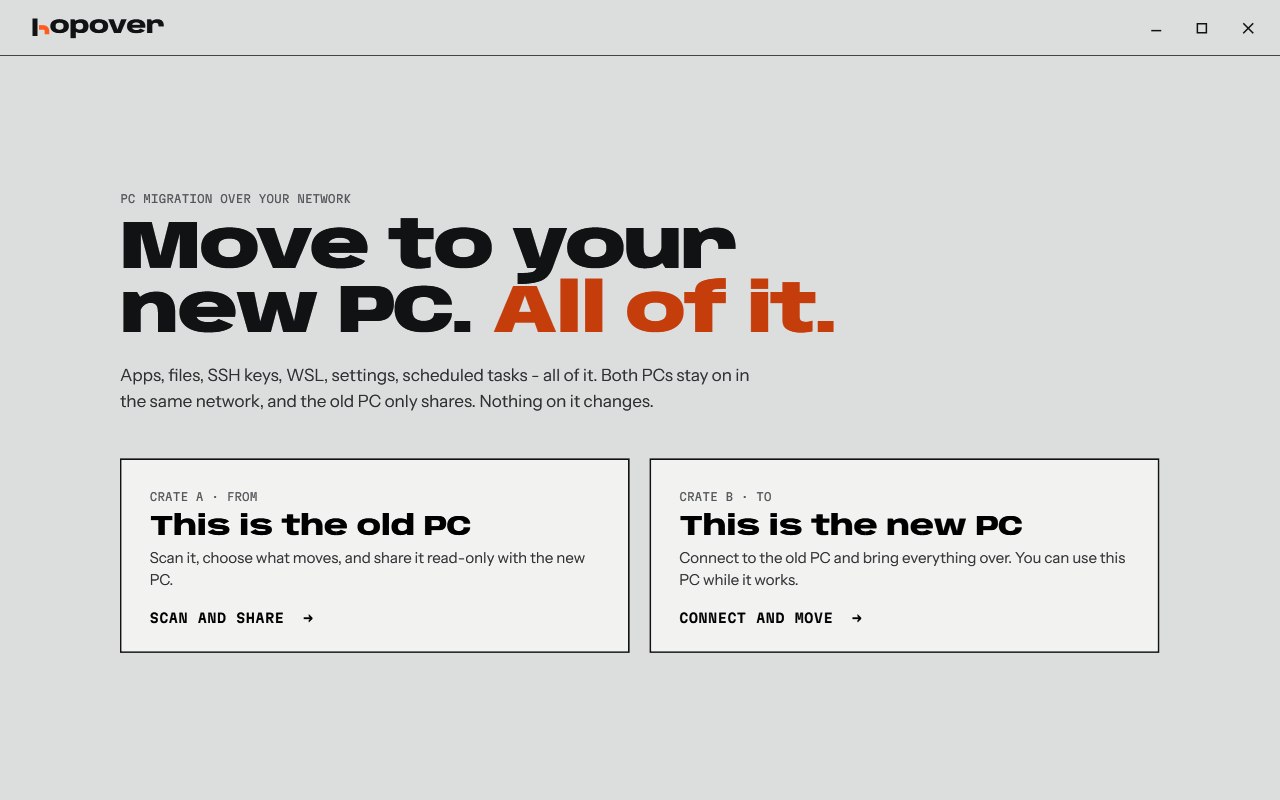
Move to your new PC. All of it.
Apps, settings, WSL, SSH keys, env vars and files, straight over your network. Keep working while it runs. When it's done, sit down at the new PC and carry on. Free to move, pay on delivery.
Or from a terminal:
winget install Aivory.Hopover
The winget package is in review at Microsoft. Runs on Windows 10, Windows 11. Read the documentation or see the source on GitHub.
What moves
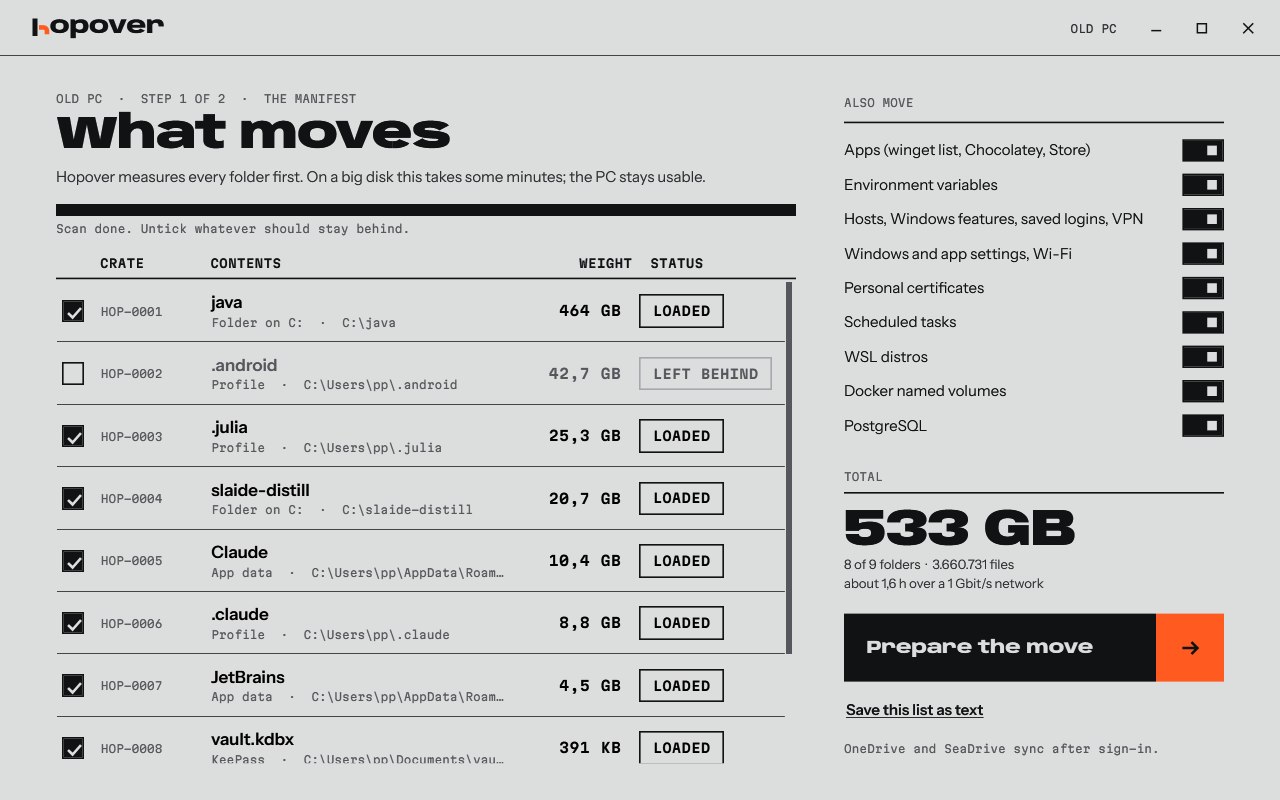
Your apps
Reinstalled through winget, Chocolatey and the Store, with Visual Studio workloads. A program with no installer moves as a folder.
Your dev setup
WSL distros, Docker volumes, PostgreSQL, env vars and PATH, SSH keys, saved git logins, npm and pip tools, scheduled tasks.
Your Windows settings
Taskbar, Start pins, wallpaper, theme, desktop layout, Explorer, sounds, night light, mouse, keyboard, languages, region, power plan, notifications, privacy, Wi-Fi, hosts file and Windows features.
Your app settings
All of AppData and the registry entries that go with it, so your apps still know you.
Your files
Your profile, your folders and your other drives. Big repos are no problem, and neither are junctions and symlinks.
Your caches, if you want them
Gradle, npm, uv, Playwright and IDE indexes each get a line in the list. Tick them and skip the big download.
Why it's different
Your old PC stays in use
Work as usual during the move. One click on Catch up fetches what changed since.
Nothing gets thrown away
If a file changed on both PCs, the new PC keeps its version. The other one waits for you in C:\hopover-held.
Look before you leap
Preview first writes everything Hopover would do to a text file. Read it, then decide.
A cable beats the router
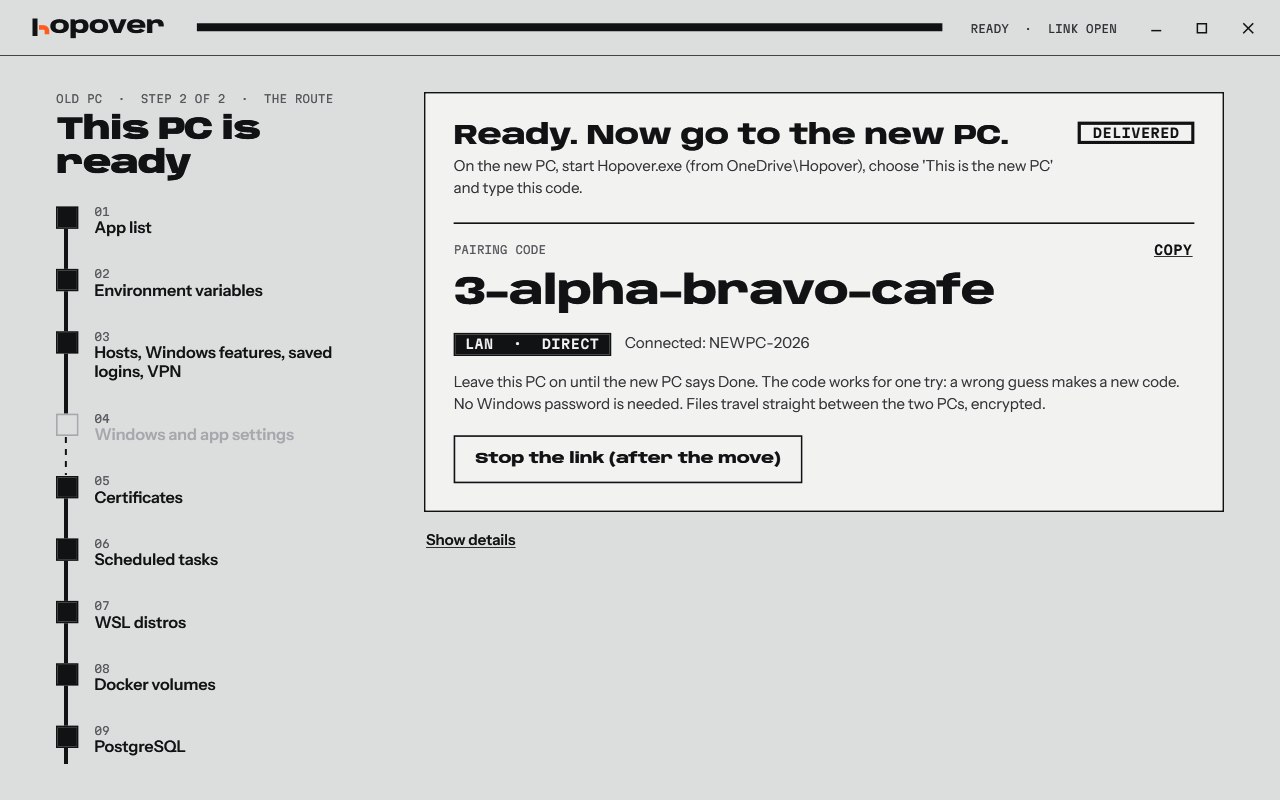
One LAN cable from PC to PC and choose Direct cable. No router, no setup, and more than 200 MB/s in my own move.
Stop any time
Close Hopover and come back tomorrow. It picks up where it stopped.
See it work
How to move
1. On your old PC
Start Hopover and click This is the old PC. The pairing code shows up right away. Untick what stays behind and click Prepare the move.
2. On your new PC
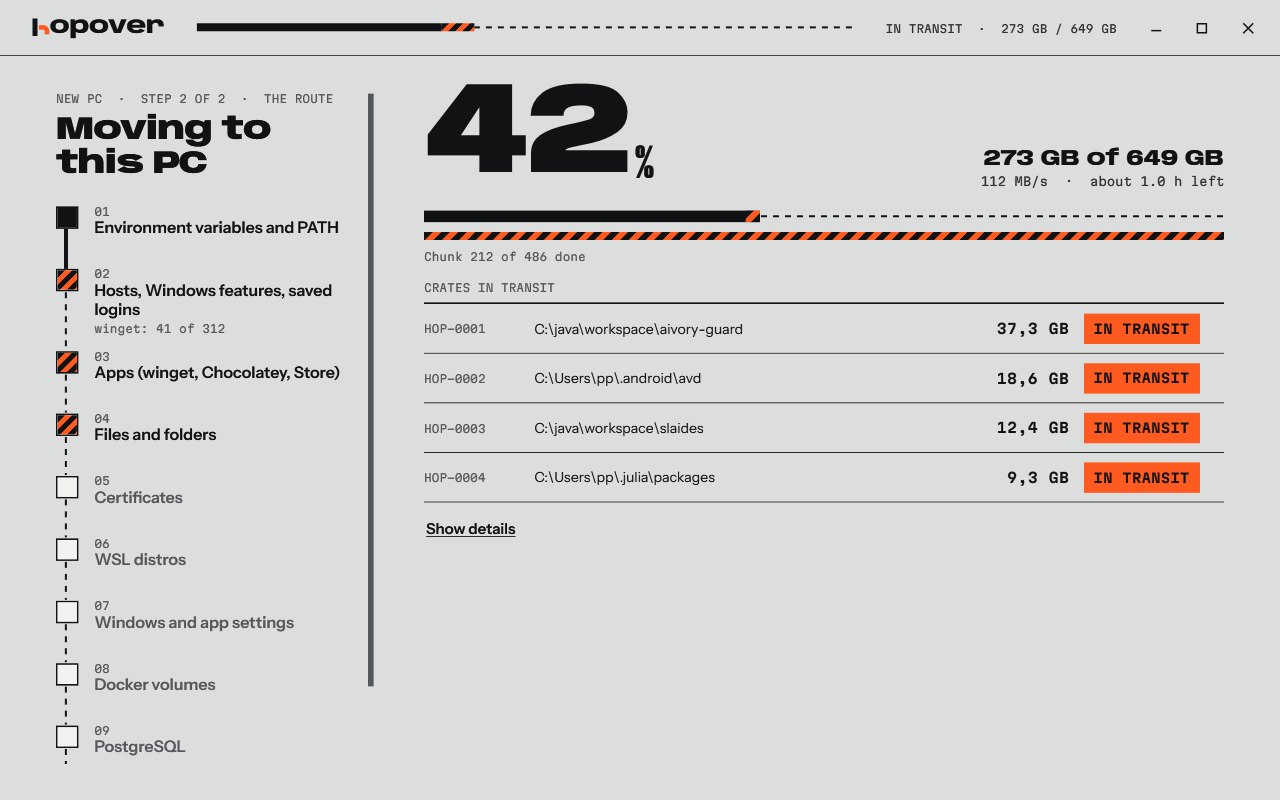
Start Hopover, click This is the new PC and type the code. It waits for the old PC. Click Start the move.
3. When you're ready to switch
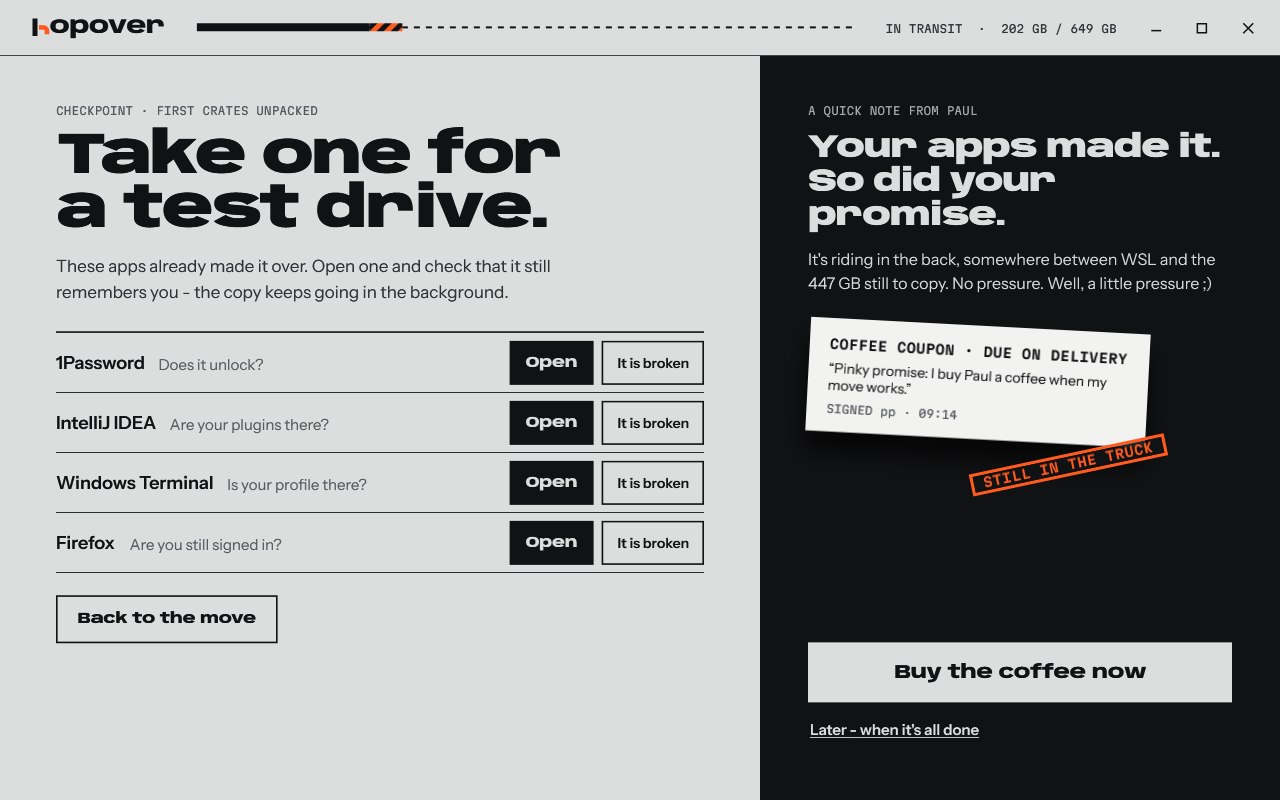
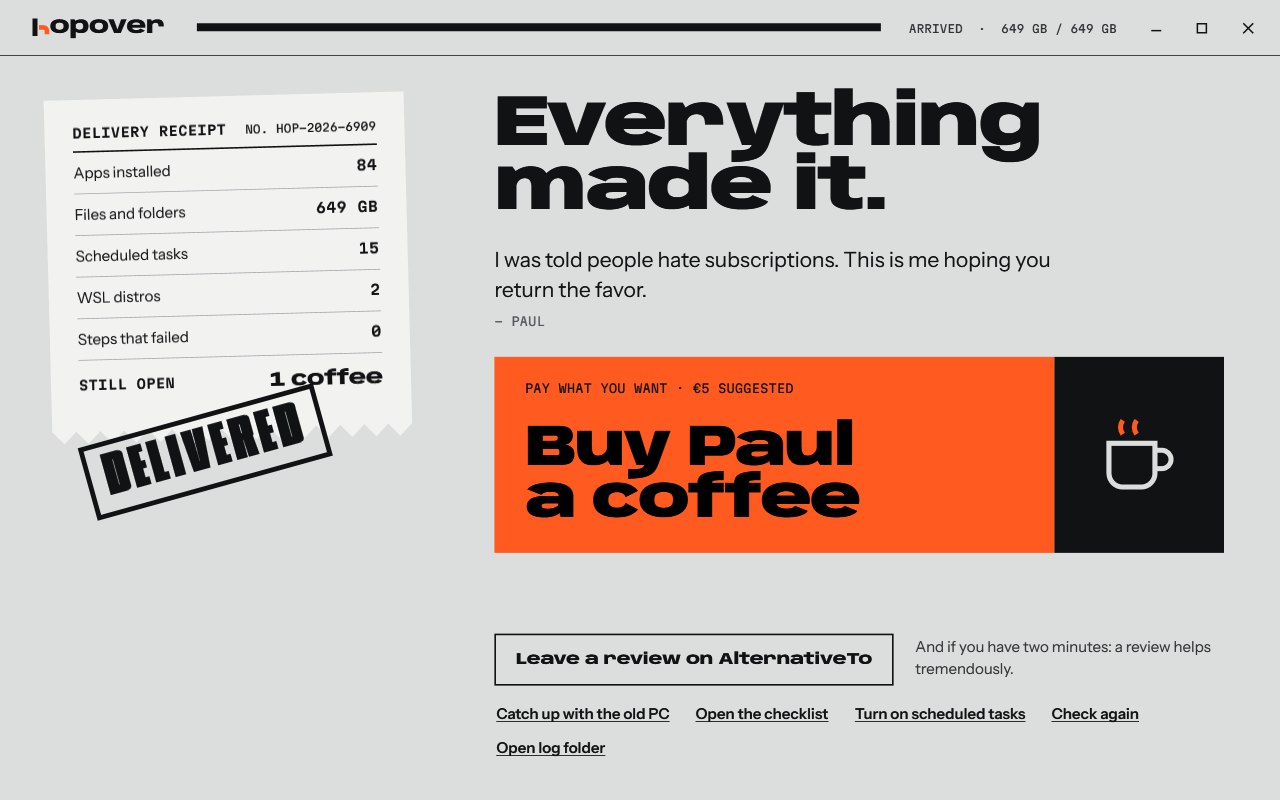
Click Catch up with the old PC one last time, then Sign in to your accounts. Hopover opens each one in turn, password managers first.
Before you start
Hopover is young, so keep a backup of anything you can't lose. The exe isn't signed yet, so Windows warns you once. Docker images come back with your next pull, and browser profiles sync after you sign in.
Free, with a coffee if it works
Free. If your move works, we'd like a coffee, or a review and a star on GitHub. If it fails, open a ticket on GitHub.
Hopover sends no data to AIVory. Read the privacy policy and the documentation.