The Screens of AIVory Code
The desktop app has six screens. The rail on the left switches between them: War room, Inbox, Tasks, Repos and Settings. A session opens in the Session screen.
- War room: all sessions on one screen, grouped by codebase
- Session: the deep dive into one session
- Inbox, Tasks, Repos: what waits for you, what is planned, and what the repos hold
- Settings: agents, autopilot, display, devices, notifications
Session States
Every session has one state. The state decides the color, and it decides the group in the war room.
| State | Meaning |
|---|---|
| Needs you | The agent waits for your answer: a permission, a plan, or a question |
| Working | The agent runs |
| Blocked | The agent stopped on an error. The data calls this state error. |
| Idle | The agent has no work and waits for a task |
Sessions that no process runs are Parked. Finished sessions are Done. The war room shows both in a quiet section, with a Resume button.
War Room
The war room is the start screen. It shows the sessions of all agents as panes. The group Needs you comes first, and the session that waits longest comes first in it. One group for each codebase follows.
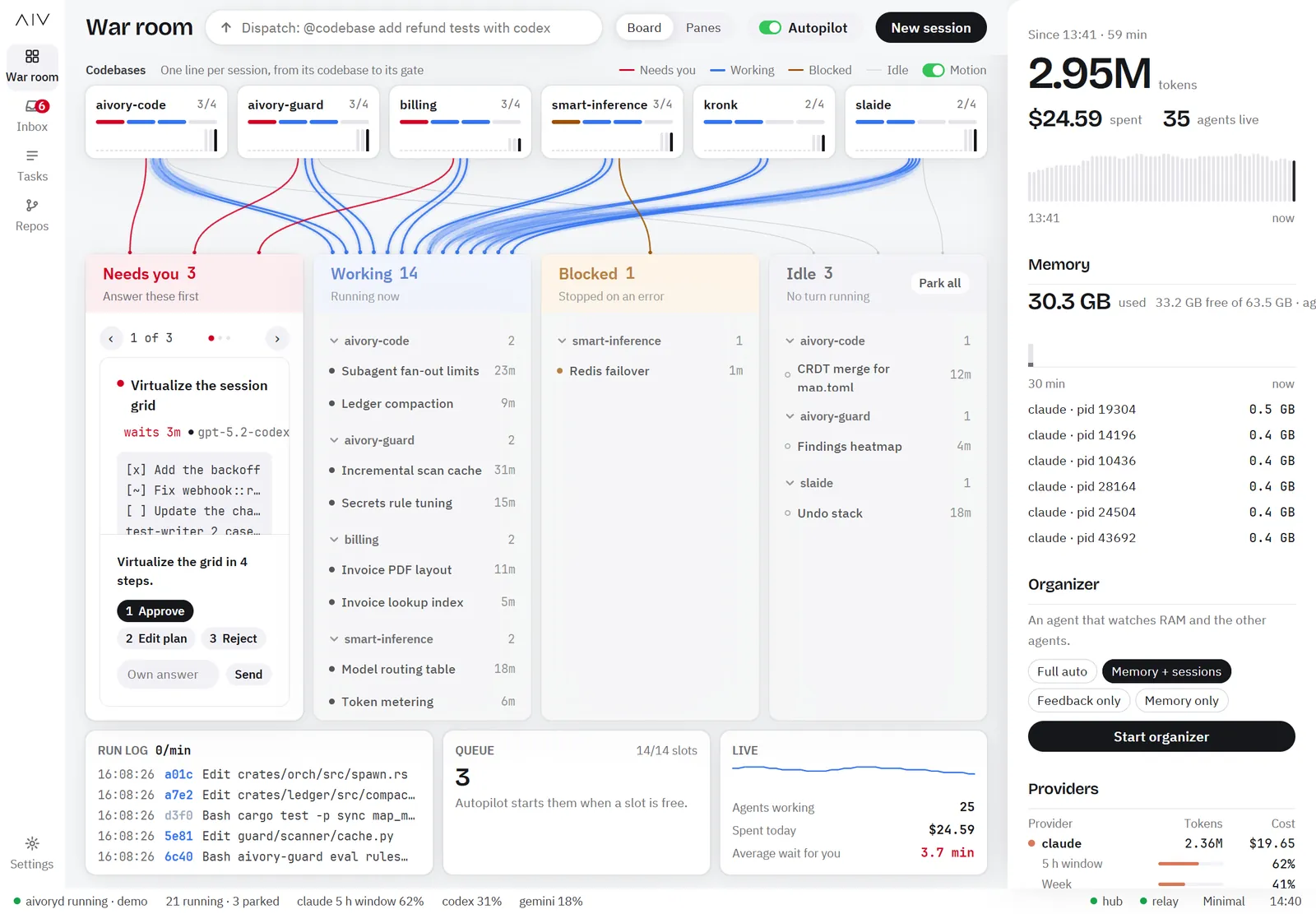
- The header shows how many sessions need you and how many are blocked.
- A chart shows the activity of the last 60 minutes.
- Each pane shows the transcript of a session. You answer a permission, a plan or a question in the pane.
- Use Panes per row to change the size of the panes.
- Use Autopilot to park idle sessions and to start queued tasks. Autopilot is off by default.
Session
Select a pane to open the session. The Session screen shows one session in detail.
- Buttons: Pause, Park, Fork turn, Handoff and Stop.
- A strip shows the turns, the tool calls, the cost and the context use.
- Tabs show the work in four ways: Waterfall, DAG, Transcript and Diff.
- A panel on the right shows the evidence for the span that you select.
Inbox
The Inbox lists everything that waits for you, with the oldest wait first.
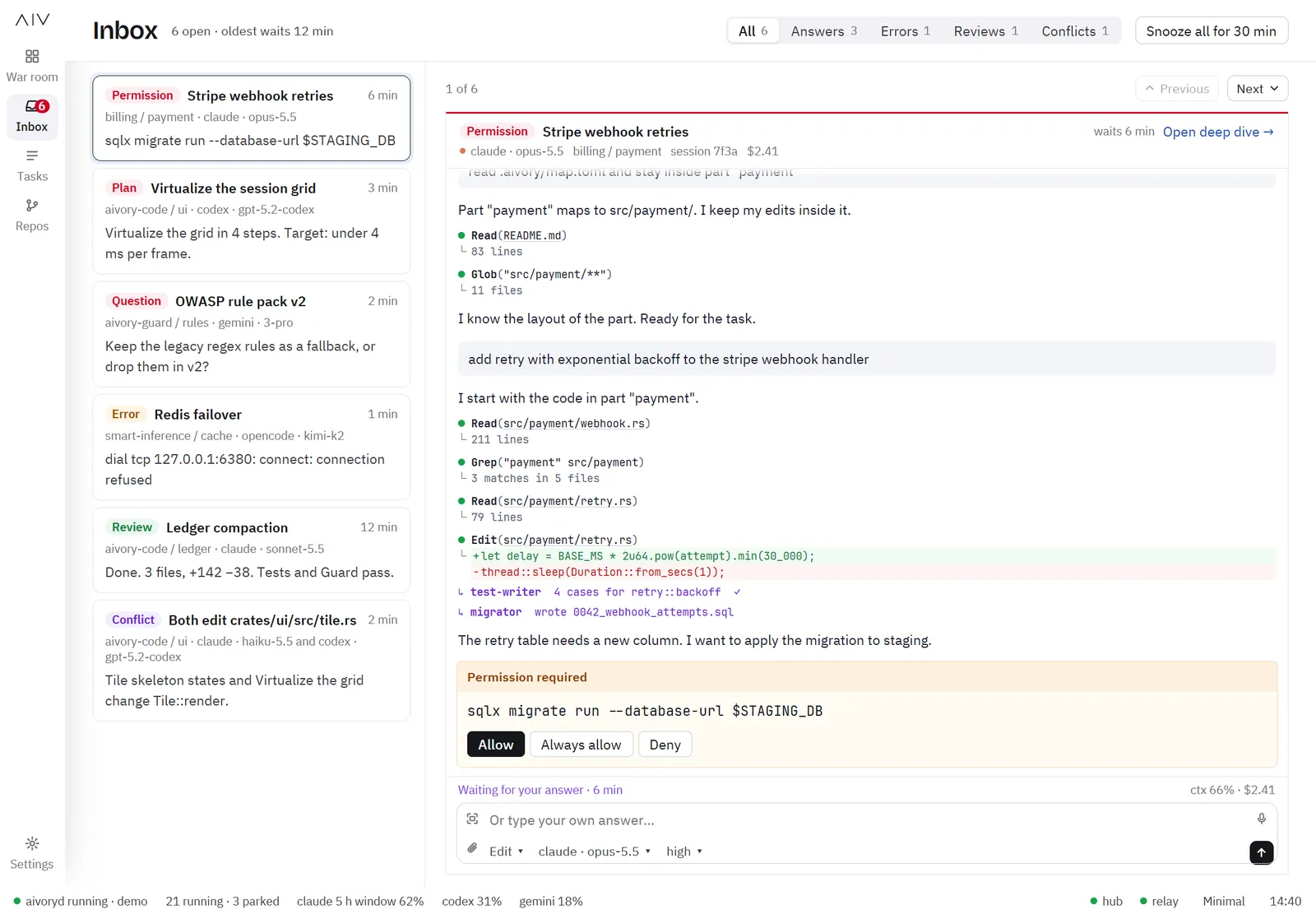
- Kinds: permission, plan, question, error, review and conflict.
- Filter by kind, or snooze all items for 30 minutes.
- Answer in the detail view. The item then moves to Done in this session, and the next item opens.
Tasks
Tasks is a board for work that you plan for your agents.
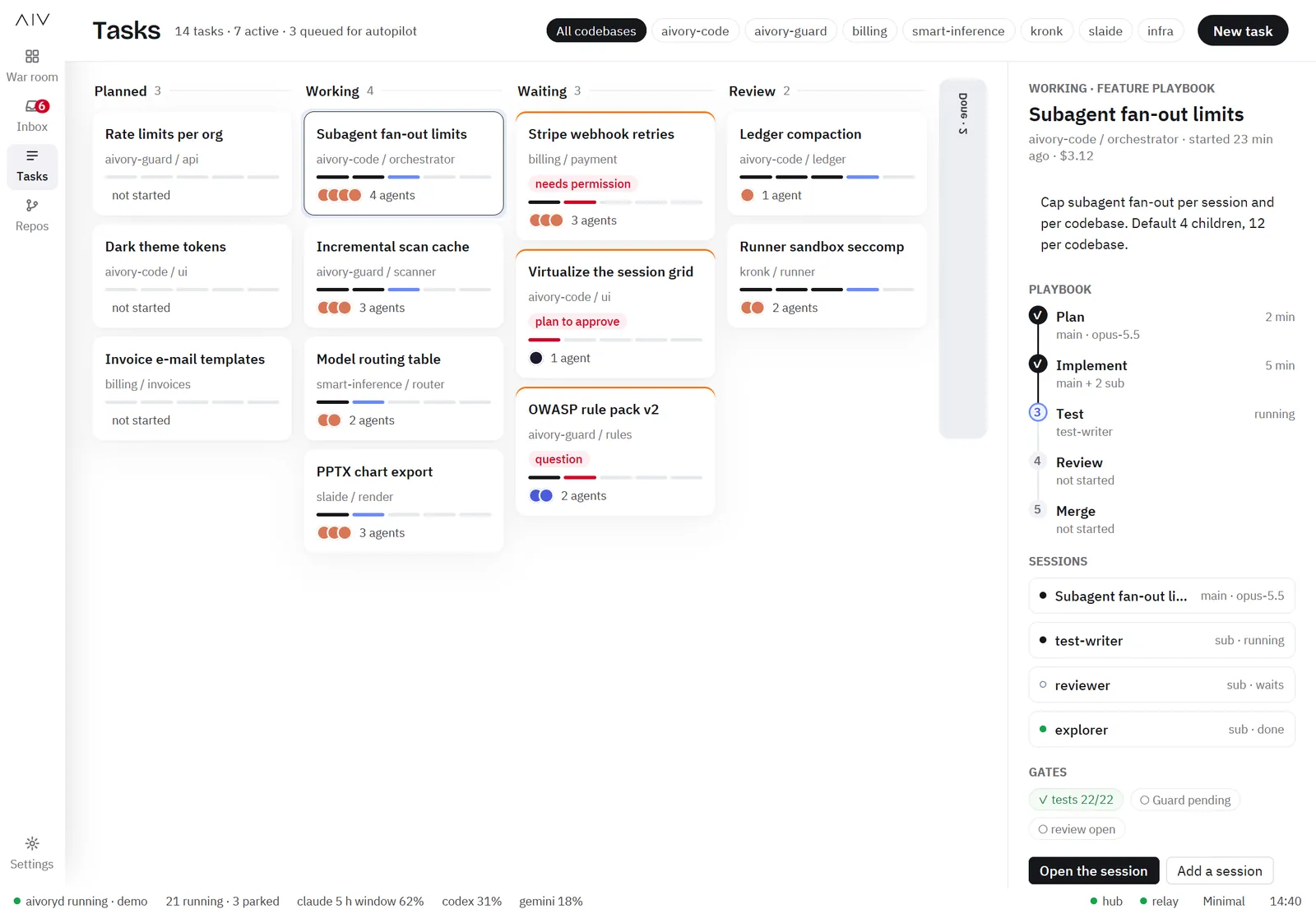
- Columns: Planned, Working, Waiting, Review and Done.
- A task has a playbook of five steps, for example Plan, Implement, Test, Review and Merge.
- With Autopilot on, the app starts queued tasks for you.
Repos
Repos shows each codebase that has sessions.
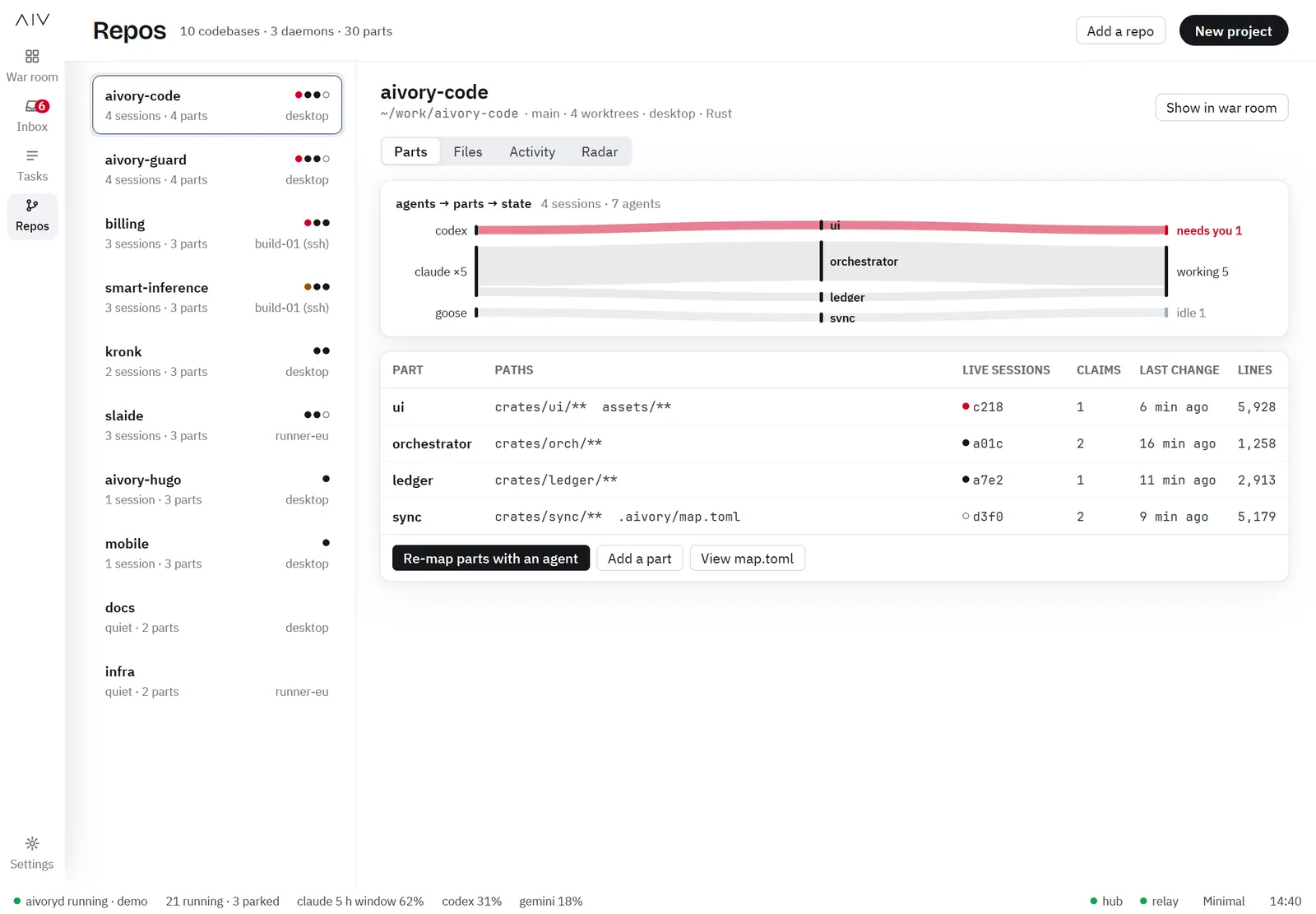
- A repo has parts. The part map is the file
.aivory/map.tomlin the repo. - Tabs show the parts, the files and the activity of the repo.
- Create a first part map from the command line with
aivoryd map init <repo>. See Command Line.
Settings
Changes in Settings save at once.
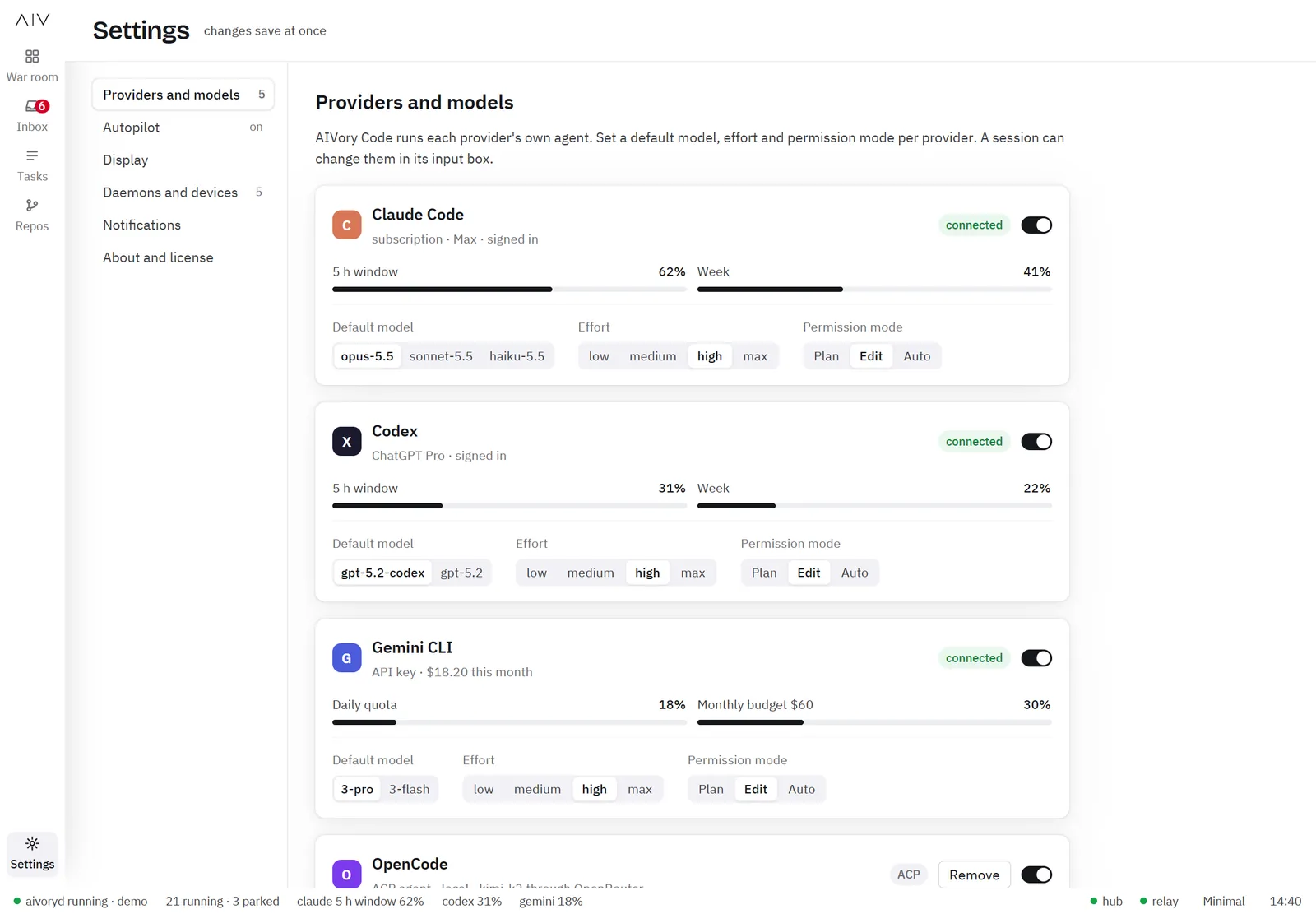
| Section | What you set |
|---|---|
| Providers and models | Which agents are on, and their default model and permission mode |
| Autopilot | When to park idle sessions, how many sessions run, and whether to start queued tasks |
| Display | The look, light or dark, panes per row, and the console font |
| Daemons and devices | The daemons, and the phones that you paired |
| Notifications | Which events notify you, and on which channel |
| About and license | The version and the license |